
Give headquarters, field teams, and location managers visibility into training progress and qualifications – with report results limited to the information they are authorized to see.
Review team progress, use standard reports, and configure reports for your organization’s questions. Schedule recurring reporting and deliver results by email or to designated SFTP/FTP servers.
Spend less time preparing reports and more time following up where training needs attention.
A network-wide total can help headquarters review progress. A field representative needs to know where follow-up is needed. A location manager needs to understand the training still outstanding for their people.
When every question requires someone at headquarters to prepare another spreadsheet, reporting becomes another administrative task instead of a practical management tool.
Useful reporting connects the right information with the person responsible for acting on it.

Review Network Progress
Monitor training progress across the entire network, identify gaps in completion and certification, and determine where additional attention is needed.

Focus Location Follow-Up
Identify locations with training gaps, prioritize follow-up, and help local managers keep their teams on track.
Support Individual Learners
Review individual training goals, monitor completion status, and help employees complete their assigned training.
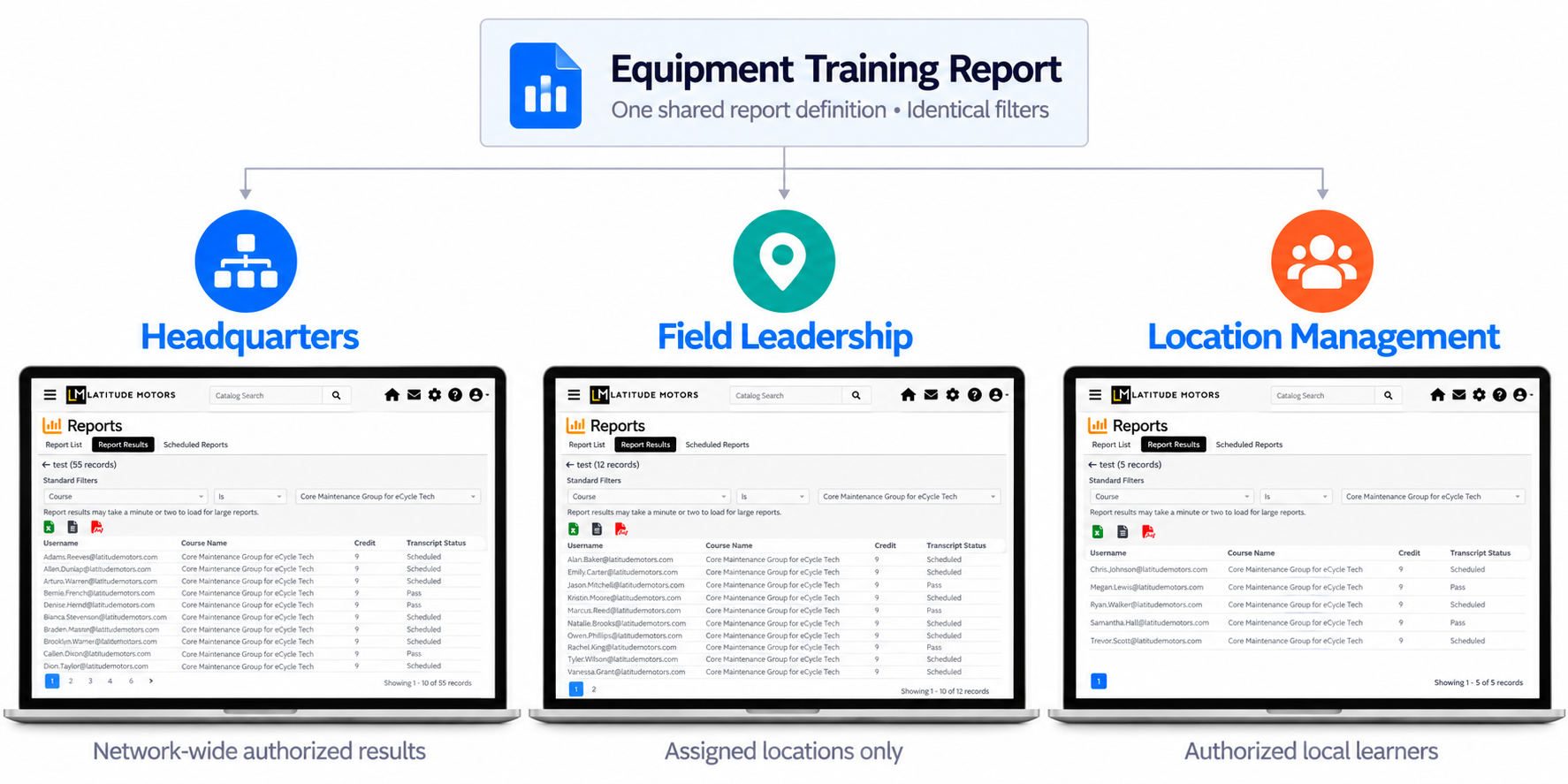
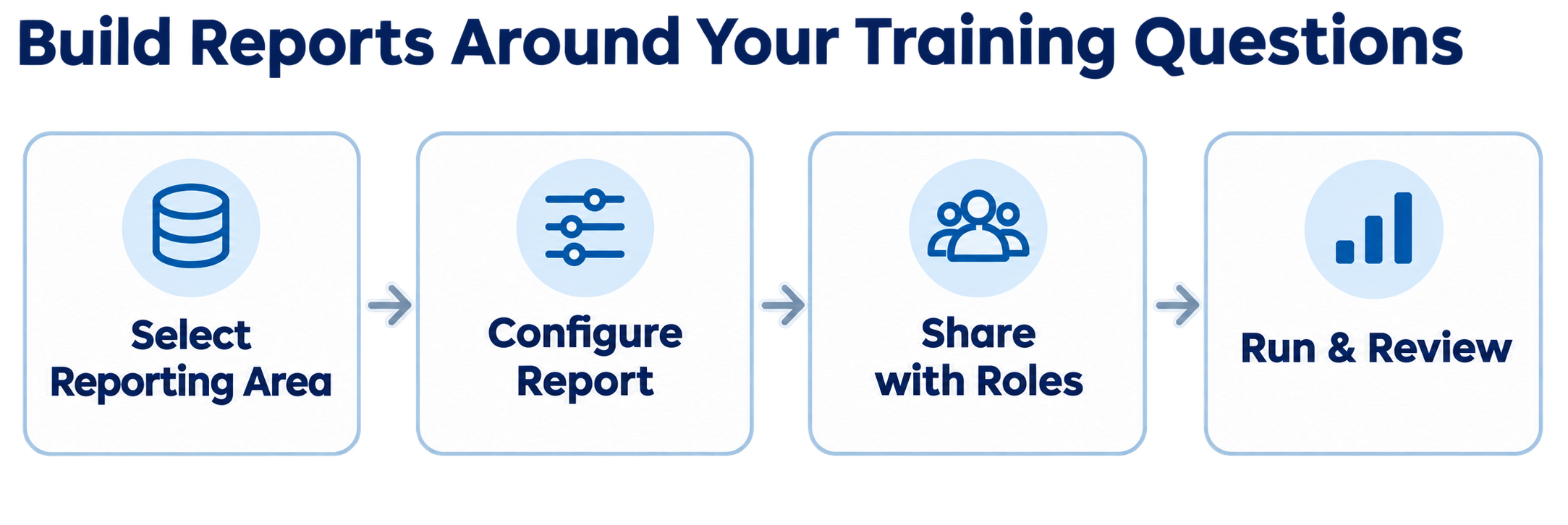
Portal administrators can share a Report Writer report with appropriate roles. When an authorized user runs it, results reflect the learner information that person has permission to view.
A shared report can serve headquarters, field leadership, and location management without giving each user the same network-wide data access. The permissions and reporting relationships configured in the LMS determine the scope.
Standardize the report. Preserve the authorized view.
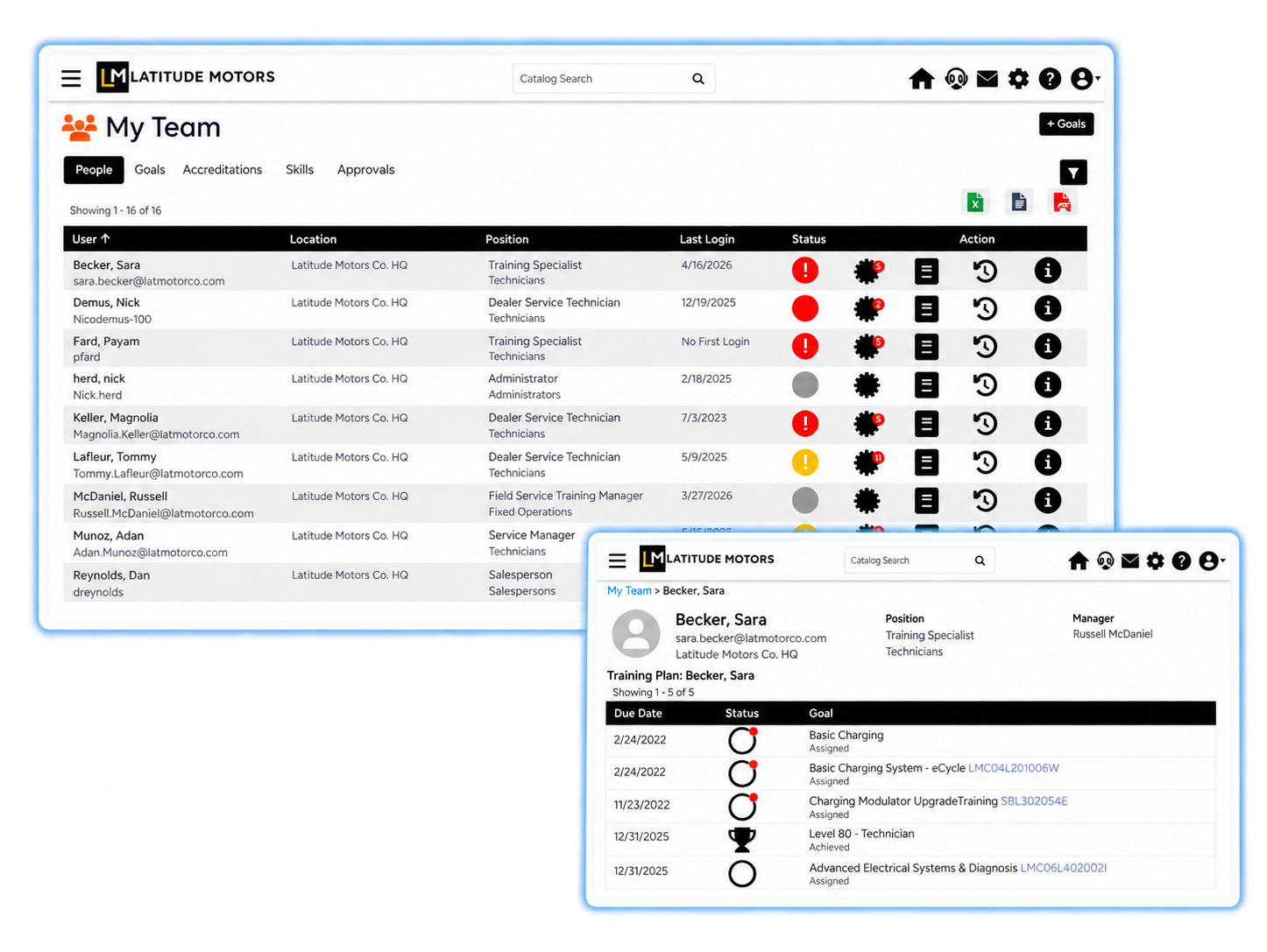
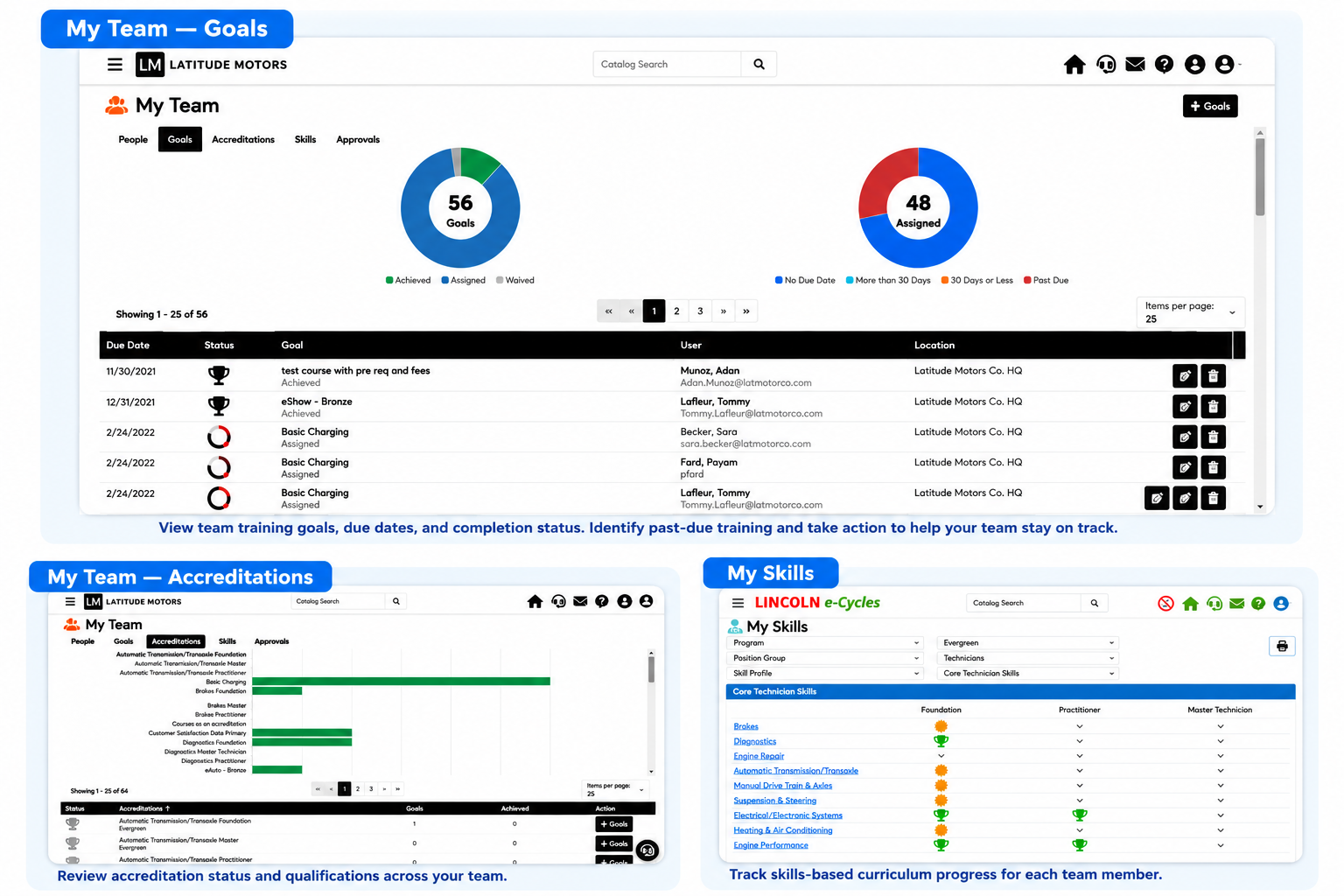
My Team gives managers a direct view of employee training without first designing a report. Review people and assigned goals, examine qualifications, and open the details needed for follow-up.
| View | Management Question |
|---|---|
| People | What is happening in this employee’s training plan and history? |
| Goals | Which assigned goals are complete, in progress, or past due? |
| Accreditations | Which accreditation objectives have people achieved? |
| Skills | Where does the team stand within its skills-based curriculum and Skill Profile? |
A franchise manager can open an outstanding goal, review the relevant employee or course details, and use the management actions available for that goal and their permissions.
Accreditations and Skills views depend on the relevant portal features. The Skills view concerns skills-based curricula. The People status indicator summarizes assigned course and accreditation goals; it is not a measure of every enrollment or overall job competency.
See the status, then open the information needed for the next management conversation.
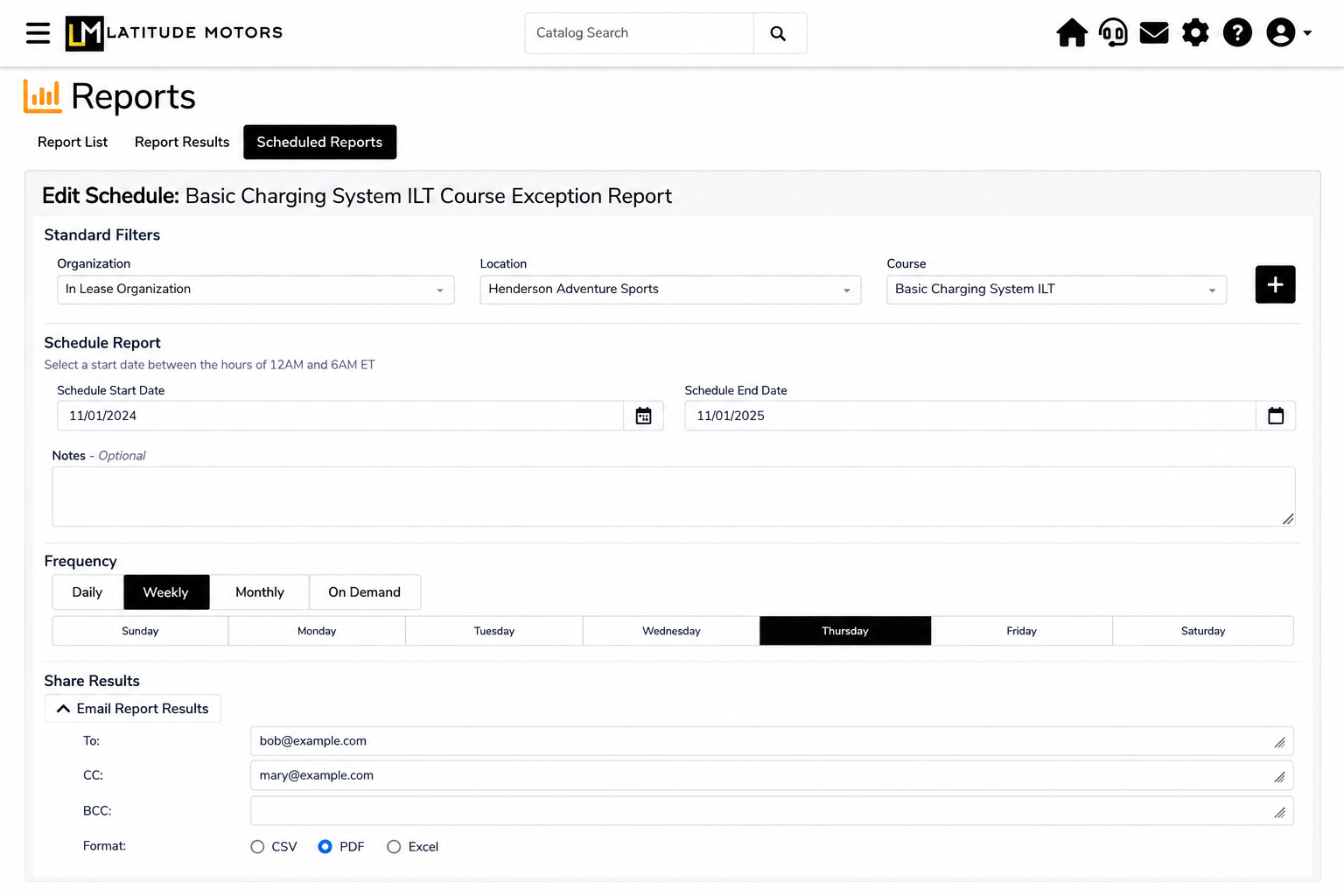
Use Report Writer schedules to repeat the reporting your network needs without manually running the same report each time.
Choose the frequency, reporting filters, and schedule start and end dates. Where appropriate, rolling date filters such as Current Year or Last 12 Months help the report remain useful as time moves forward.
Email Results Automatically
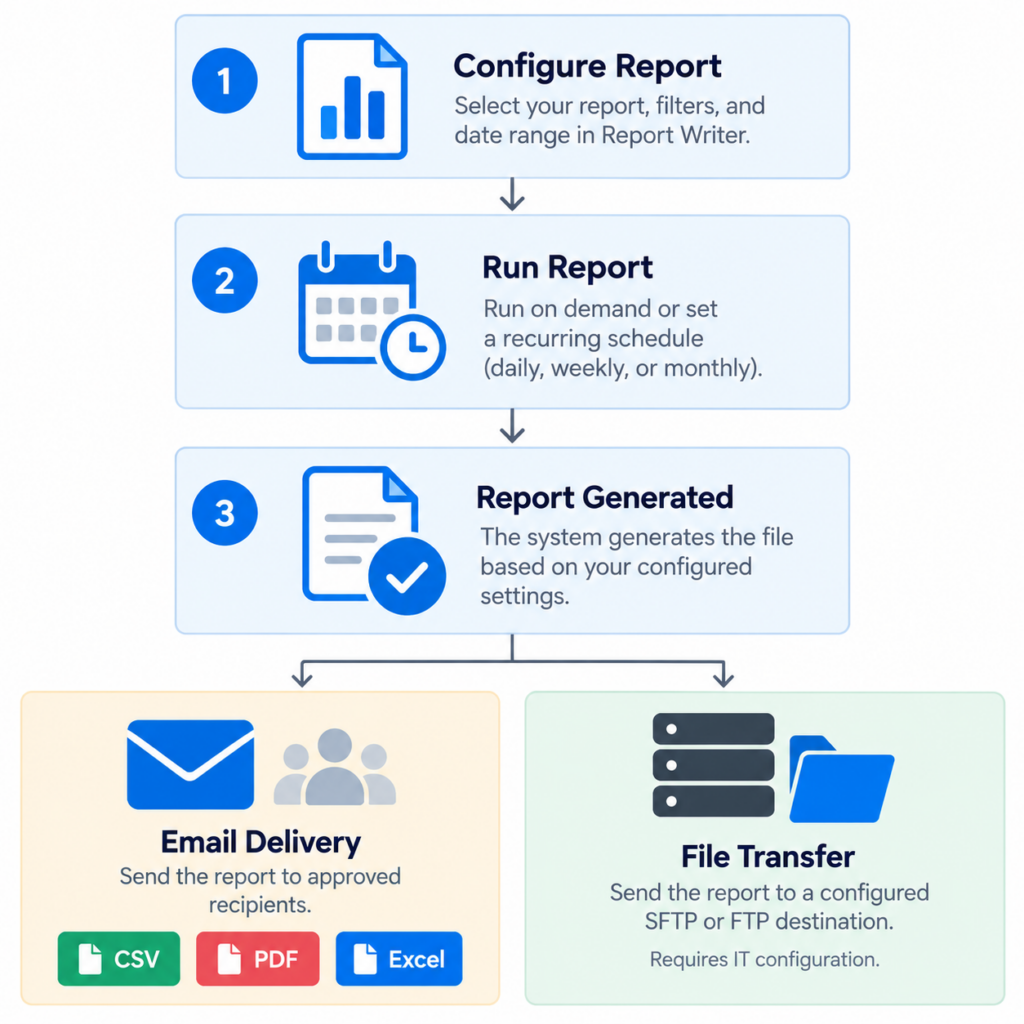
Configure report results for delivery to approved email recipients, either through a recurring schedule or an on-demand Report Writer run. Choose a supported output format such as Excel, CSV, or PDF for the people who need the file.
Send Scheduled and On-Demand Results to SFTP/FTP
Report Writer can send scheduled results and ad hoc report results to a configured SFTP/FTP destination. Give your organization’s downstream reporting process access to the files it needs without manually repeating every transfer.
Choose recipients and destinations that are authorized to receive the generated data. A scheduled file reflects the scheduling user’s scope; sending it does not create a separately filtered version for each recipient.
Automate the delivery as well as the report run.
See Reporting Run from Authorized View to Automatic Delivery
See one report produce different authorized views – and follow its scheduled delivery to the right destination.
Classic Reports provide predefined ways to review courses, users, accreditations, and training progress. Available reports depend on the user’s role, and each report has its own filters and result definitions.
Start with a common business question and select the report designed to answer it.
| Business Question | Classic Report |
|---|---|
| Which course registrations are past due at a location? | Course Past Due by Location Report |
| How many accreditation achievements are recorded by location within a program? | Certification Summary for Location |
| What is each learner’s primary certification goal and highest completed certification in the program? | Certification Detail by Program and Organization Report |
Use Classic Reports to answer common training questions quickly. When you need customized fields, filters, or reporting views, use Report Writer.
Portal administrators can use Report Writer to choose a reporting area, select columns, define filters, and organize reports into folders. Share report definitions with appropriate roles so other authorized users can run them within their permitted scope.
Use run-time filters for questions that change from one review to the next. Keep the criteria that must remain consistent in the report definition.
Available reporting areas cover course activity, accreditation information, account and organizational data, and assessment information. Report Writer produces downloadable results for use in your organization’s reporting and analysis process.
Design a useful view once. Make it available to the appropriate reporting users.
For qualification reporting, distinguish accreditation achievement from accreditation-goal progress. A recorded achievement is not the same as an assigned development objective.
Imagine a cleaning franchise introducing a new equipment-training requirement across its locations. Headquarters needs to understand who requires follow-up, which qualifications have been achieved, and how to keep field teams informed.
Headquarters prepares separate reporting views for assigned accreditation goals and recorded certification achievements, using clearly defined populations and filters.
Authorized headquarters, field, and location users run shared reports within their configured access. Each user works with the reporting information available to their role.
A location manager opens My Team, reviews an outstanding training goal, and checks the learner’s details before taking an available management action.
A field representative schedules a weekly report for approved recipients. Headquarters schedules a separate monthly server export to support its reporting process.
Reporting reaches the people responsible for follow-up. Scheduled delivery helps reduce repeated report preparation while keeping teams informed.
One training initiative. Different responsibilities. Reporting that supports the next step.
Give headquarters a view of training progress, help field teams focus their follow-up, and help location managers support their people.
See how LatitudeLearning combines authorized reporting access, My Team visibility, standard and configurable reports, and automated delivery across franchise, dealer, distributor, and partner networks.
Request a demonstration of one shared report, different authorized views, and scheduled delivery to an approved destination.